
How Remote Workers Handle PDF Documents More Efficiently
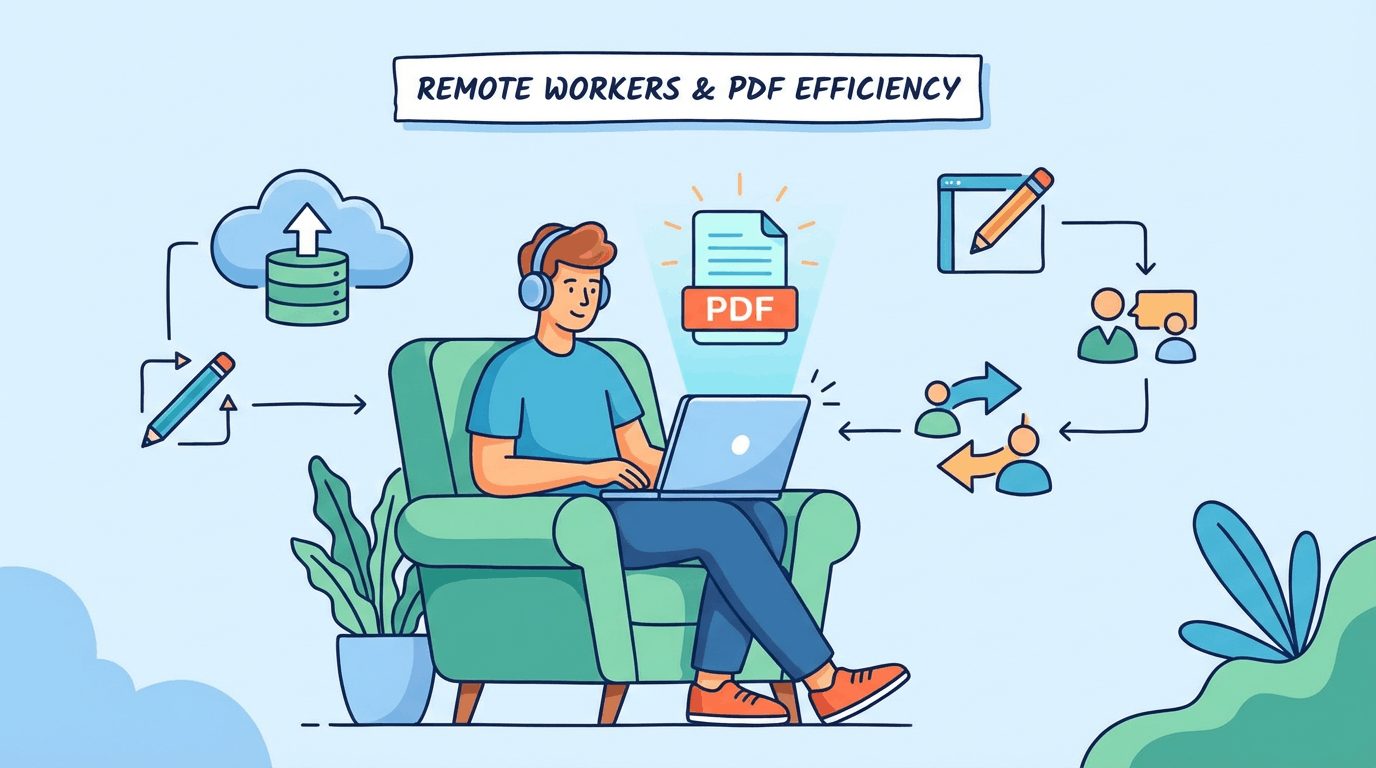
To work with PDFs more effectively is to save time, reduce mistakes, and interact with documents in ways that support actual tasks. They want to combine, separate, sign, or distribute files quickly, without hassle or danger.
A lot of tools can assist you with these tasks, from simple applications to web-based services. Knowing the best ways to handle PDFs allows users to accomplish more and worry less. The meat consists of tips and tools.
Essential PDF Workflows
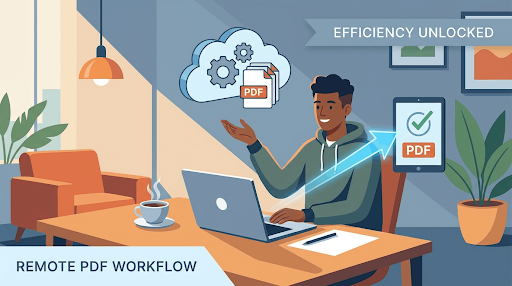
PDF workflows are not just about viewing files. They assist with editing, converting, organizing, and data extraction from PDFs. Getting this right saves hours, reduces mistakes, and ensures everyone can collaborate on information in a format that suits multinational businesses.
1. Document Editing
PDF editors allow you to edit text or replace images while preserving the appearance of the source document. Features such as annotation allow teams to insert comments or notes for quick feedback or reviews.
OCR is crucial for converting scanned documents, covenants, ancient tomes, whatever, into searchable, editable digital text. Templates keep all your documents looking neat and professional, which is great for reports or proposals that need to match a company’s style.
2. File Conversion
From Word or Excel to images and back, PDF converters work with all sorts of files, so you can flow between formats as necessary. It’s a real time-saver to configure automated conversions, particularly if you process many files every week.
Excellent converters preserve the layout and quality of your documents, so nothing is lost. Numerous web-based applications allow you to convert documents from any device without any software downloads necessary.
3. Page Management
Our drag-and-drop tools allow you to move, delete, or reorder pages within moments, assisting you in polishing large documents. Breaking up large PDFs into smaller bits makes it simpler to share or print them.
Merging PDFs is convenient for bundling related materials, such as receipts or legal files. For remote workers who regularly handle multiple documents, using a reliable online tool to merge PDF files can make document management much simpler.
Combining related reports, invoices, and project files into a single PDF keeps everything organized and makes sharing documents with colleagues or clients more convenient. Bookmarks and navigation tools make long PDFs easier to browse.
4. Data Extraction
Automating data pulls with PDF extractors saves you hours and reduces errors from manual typing. Smart tools utilize OCR and NLP to extract data from unstructured files such as invoices, medical forms, or research papers.
Pre-processing, such as removing headers, allows these tools to perform even better. Structured outputs, such as tables or CSV files, facilitate reusing the data.
5. Form Automation
Designing fillable forms allows anyone to type answers directly into the PDF. Automated workflows dispatch forms to the appropriate recipients and monitor responses effortlessly. E-signatures let you sign from anywhere easily. Built-in tools allow you to analyze the outcome and make intelligent decisions quickly.
Optimize Document Performance
To manage your PDF files well is more than just saving them. Document performance affects how users experience, interact with, and consume content, particularly across devices and networks. Smart optimization makes sure that PDFs load quickly, look great, and perform perfectly for anybody, anywhere.
File Compression
Checklist for Compression:
- Check file size and content type (images, text, forms).
- Choose a reliable compression tool.
- Set image resolution between 100–150 DPI for web.
- Adjust quality to 60–70% to keep visuals clear.
- Use standard fonts to cut extra downloads.
- Enable linearization for faster web page display.
- Apply security settings like password protection.
Balancing file size and quality means adjusting compression depending on what is in the PDF. An image-centric file can shrink as much as 80 percent without sacrificing much detail, and text-centric files receive lesser drops. Trying different settings is the only way to locate that sweet spot.
Batch compression is a time saver for lots of files. This is pivotal for teams that process reports or manuals in mass quantities.
Check file sizes regularly. This stops storage bloat and keeps document management snappy and dependable.
Web Viewing
Optimize PDFs for the Web by compressing and linearizing. Compress images, embed just the fonts you need, and break up large files if you can.
Cross-browser test the PDF. Each browser can display documents slightly differently, so verifying helps ensure users view what you mean.
Responsive design counts for phone and tablet users. PDFs must scale, scroll, and display clearly regardless of screen size.
Use online PDF viewers. These tools allow people to browse documents without downloading, conserving bandwidth and time.
Document Accessibility
Adhere to accessibility standards for screen readers, such as tagging headings and applying alt text on images. This makes your PDFs accessible to more users.
Include a table of contents and bookmarks. Users with diverse interests can locate their desires more quickly.
Audit documents frequently to remain compliant with accessibility standards. Laws vary, but frequent audits keep you current.
Provide alternate formats, like plain text or html, for important documents. This encompasses individuals with diverse requirements and renders your PDFs more accessible.
Automate Repetitive Tasks
Automation in PDF processing minimizes manual labor, prevents mistakes, and increases productivity across your team. There are tons of routine tasks, such as renaming files, sorting folders, and sending documents for review, that offices all over the world execute every day.
By putting routine steps on autopilot, folks gain back time for grander, more imaginative work. About 94% of employees say they waste hours on repetitive tasks, and almost half say they have difficulty being efficient.
With most of the world’s data unstructured, including PDFs, automating these steps is now the name of the game for staying ahead and keeping costs down.
Batch Processing
- Adobe Acrobat Pro DC, Foxit PhantomPDF, Nitro Pro, and PDFsam provide batch processing.
- Kofax Power PDF, Smallpdf, and PDFelement facilitate bulk actions.
- Help automate boring, repetitive tasks such as renaming, splitting, merging, or converting a large number of files.
- Zapier and Automate.io assist in linking PDF utilities with various other applications for group assignments.
Batch processing allows teams to conserve precious time by processing batches of files at a time. For instance, renaming a hundred contracts or separating monthly invoices into individual folders is much quicker when performed by software. Manual tasks become easy to scale up and teams can dodge expense errors that can come from fatigue or oversight.
Tracking these macro-scale actions is easy since most platforms offer straightforward logs or error messages. If something does break, it flags it so nothing falls through the cracks.
Workflow Integration
Mixing PDF tools with existing doc systems keeps all that humming. With APIs, you could connect apps like Dropbox, SharePoint, or Google Drive to your PDF software of choice. That way, files flow automatically between platforms and actions such as approval or archiving occur without user involvement.
Custom workflows can be constructed to fit the way your team works. These could be things like auto-tagging files, sending reminders, or routing documents to the appropriate individuals. Training staff is key to squeezing the best out of these tools so everyone works quicker and fewer errors occur.
Secure Your Files
Protecting PDF files is a primary concern for individuals and businesses alike. As we continue to work and communicate digitally from home, the potential for a breach or a leak has increased. Safeguarding confidential material isn’t merely a matter of technical procedure. It’s an integral component of wise knowledge stewardship. Below is a quick overview of different PDF security measures and their effectiveness:
| Security Measure | Purpose | Effectiveness |
| Encryption | Prevents unauthorized access | High |
| Password Protection | Restricts file opening/editing | Moderate |
| Digital Signatures | Verifies authenticity and integrity | High |
| Watermarking | Deters unauthorized sharing | Moderate |
| Redaction | Removes confidential data | High |
| Access Control | Manages user permissions | High |
| Regular Security Reviews | Ensures ongoing compliance | High |
Access Control
Define specific user permissions. Control who can view, comment, or edit your PDFs. It’s the initial measure to prevent unauthorized modifications or exposure. Password-protect documents that contain private or sensitive information.
It’s a basic gate. Passwords are shareable and guessable, so back it up with stronger measures when necessary. Keep track of access logs to find out who opened or modified a file. Logs can help detect unusual activity.
As project teams come and go, update access settings so just the right folks remain in the loop. Both Enterprise and Document Rights Management provide options to further customize these controls and monitor files shared even within data room environments.
Digital Signatures
Use digital signature technologies to sign PDFs and ensure that files stay unaltered. These signatures cover three main needs: integrity, authenticity, and non-repudiation, making it clear who signed and when.
Ensure the digital signature solution you adopt complies with legal standards in your area, so that documents stand if contested. Educate users on the importance and process of e-signatures, emphasizing their ability to accelerate approvals and provide trust.
Tracking capabilities in digital signature platforms allow you to track when files are signed or pending, which comes in handy for bigger teams.
Content Protection
Watermark PDFs with sensitive info to dissuade sharing! Redact before you share by blacking out or erasing details that should remain private. Backup your PDFs regularly to ensure that accidental deletion or system failure does not wipe out your work.
Train your team how to be safe too by never sharing passwords and double-checking all redactions so that everyone contributes to keeping files secure.
Enhance Team Collaboration
Effective team collaboration revolves around easy access, collaborative feedback, and transparent communication, particularly when dealing with PDF files. Teams get roadblocked too, because PDF files don’t necessarily support the same real-time features. With the right tools and habits, you can bridge these gaps, making teamwork smoother for all.
Cloud Storage
Centralizing PDFs in the cloud allows all of your team to locate files quickly, from anywhere, on any device. This reduces wasted time searching for the correct version. Teams can leverage real-time editing, eliminating the back and forth of email chains.
Utilizing trusted cloud providers, such as those providing hard 256-bit AES encryption, ensures data travels securely, even as files jump from user to user. Organizing by project or topic is great for keeping things straight as documents accumulate.
Automation features like auto-save and auto-send additionally minimize manual labor and mistakes.
Shared Annotations
- Do’s: Use clear, color-coded notes. Stick to terse remarks. Adhere to established standards. Review notes prior to sharing. Archive when done.
- Don’ts: Avoid vague remarks. Don’t litter files with excessive comments. Skip on personal opinions along unless asked.
Teams can use color-coded marks to indicate changes or queries, which makes comments a snap to find. Establishing easy comment guidelines, such as when to use highlights versus sticky notes, keeps the review process structured. When a project comes to a close, archiving notes allows teams to reference feedback from the past, creating accountability and accelerating future reviews.
Version Control
Version control records each change, so teams know what file is current. Maintaining a clean edit log makes it painless to roll back if mistakes arise. Easy naming conventions, such as including a date or version number, reduce confusion.
Training everyone on the process guarantees that nobody overwrites the wrong file as your team expands. Automation, such as tools that add page numbers or auto-save versions, keeps things flowing without unnecessary additional actions.
Build Your Toolkit
Developing a good PDF toolkit is about carving out the time to identify and craft the best possible toolset for yourself. A lot of them come with hurdles—watermarks, signups, or incessant upsells bog down even the most mundane task. Start by listing what you do most: merging, splitting, or converting files. Then seek out tools that simplify those tasks.
Others like open-source tools. PDFsam and PDF Arranger, for example, are free, let you customize configurations, and are transparent about where the code lives. For those who want more power, paid options such as Adobe Acrobat or Nitro PDF offer free trials.
Use these trials to test if the features fit your workflow prior to purchase. It’s clever to see how every device accomplishes jobs like text search, batch processing, or file compression.
PDF tech keeps evolving rapidly. Keeping up-to-date with new updates or tools can save hours. Some new apps leverage AI to extract information or simplify form completion. If you like tinkering, you can dig deeper. Think skills like Python or React that you can use to build your own tools or automate repeat tasks.
Even a basic Python script can concatenate dozens of files or rename them in seconds. For others, it’s a collaborative process that involves experimenting with a variety of different tools and adapting them to your needs.
The result is an eclectic, community-crafted toolkit. As time passes, test if your set continues to suit you. Throw in a converter, a mobile app, or a plug-in for cloud storage as your work evolves. Every new skill or tool is one less hour wasted on busywork and one more hour for meaningful work.
A nice toolkit isn’t just a collection of software; it’s a way to ease your daily grind and lend a hand to others.
Conclusion
To do PDF stuff quickly, select tools that suit your personality. With easy steps, protected files, and intuitive collaboration, any process goes faster. Apply shortcuts to actions you perform frequently. Secure your documents with powerful encryption and password protection.
Collaborate with your team in real time to push things forward. Try out a few of them free, paid and see what fits your team or solo workflow. If it’s simple, it works well for most jobs. Even minor adjustments can shave hours off your weekly workload.
Take one new tip or tool from this guide for a spin and observe the difference for yourself. Share what works with friends or your team so everyone saves time.