
How to Lock Apps on Android: Three Kinds of Lock
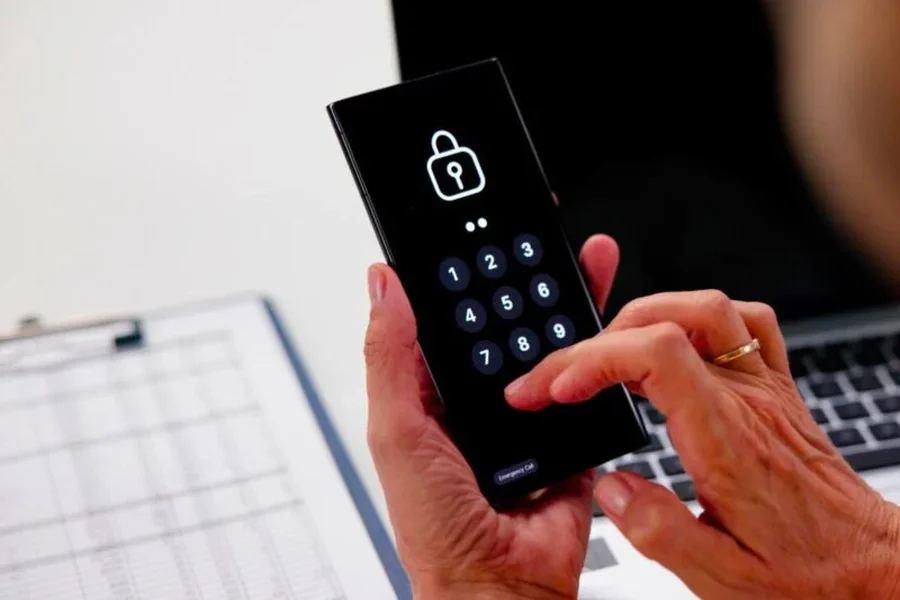
The word “lock” hides three different requests. A parent looking up how to lock apps on Android usually has exactly one of them in mind: close the game right now, because dinner is on the table; keep games shut between 8 a.m. and 3 p.m.; or make one app stop opening at all. Same word, three different setups, and choosing the wrong one is why a rule falls apart by Thursday.
In Kids360, all three live on the parent’s phone. You pick an app from your teen’s list, decide whether you’re closing it for the next ten minutes or for every school morning, and the change reaches their phone in seconds. The taps are easy. Choosing which lock you actually need is the part worth thinking about.
The ten-minute lock
Dinner is ready, and Ethan is three minutes from the end of a match that has no end. This is the most common case, and it doesn’t need a rule at all — it needs an off switch. In Kids360 you close the app from your phone right then, and open it back just as fast once the plates are in the sink.
Two things make this work better than asking twice. The block is quick to undo, so nobody has to negotiate a permanent punishment over a ten-minute problem. And because you’re not touching any long-term setting, tomorrow’s evening starts clean.
Use this one sparingly. If you find yourself reaching for it every single night at 7 p.m., that’s a sign the second kind of lock would serve you better.
The lock that runs on a clock
Schedules do the repetitive part. You set the school block once — say 8 a.m. to 3 p.m. on weekdays — and pick what stays open in that window: messages, maps, the school apps, the calculator. Everything else stays closed until the bell. A sleep schedule works the same way: after 10 p.m. the phone goes quiet and only what you left open still opens.
Next to schedules sits the daily limit. You give entertainment apps a total for the day — 90 minutes on weekdays, more on Saturday — and once it’s spent, those apps stay closed while the allowlist keeps working. Your teen sees how much is left before it runs out, so the ending isn’t a surprise mid-match.
If one app is the whole problem, give it its own timer. Forty minutes for that game, counted inside the daily total, and the rest of the time is theirs to spend on whatever else. That’s often a fairer trade than cutting everything by a third.
The lock that stays
Some apps you just don’t want on the phone this year. Kids360 lets you keep a chosen app permanently closed, no timer involved. Two settings usually go with it: blocking new installs, so the same app doesn’t come back under a slightly different name by Saturday, and uninstall protection, so the parental controls themselves stay put.
This is the strictest option, and it works best when it’s short. One or two apps, with a reason your teen has heard out loud, holds up better than a long list they discovered by accident.
Decide what’s worth locking first
Before setting anything, look at a normal week. On Android, Kids360 shows time app by app, not just a total, and the list rarely matches what parents expect. The app you were ready to block turns out to be twenty minutes across the week; the browser is two hours a night. Locking the first one changes nothing and costs you a lot of goodwill.
That report is also the easiest thing to put on the table during the conversation. You’re not arguing about whether it’s “too much” — you’re both reading the same numbers and deciding what to do with Tuesday evening.
What Android already does on its own
Android isn’t empty here. Screen pinning keeps the phone stuck in one app until someone unpins it, which is handy when you hand your phone to a younger kid for a video. Google’s Family Link covers daily limits, bedtime, and app approvals on a child’s Google account. Plenty of families start there, and for a ten-year-old that may be all they need. Parents of teenagers usually come looking for the pieces around the edges: the instant block for tonight, the per-app timer, the detailed report, and a way for time to be earned back rather than only taken away.
Minutes they can earn back
That last part matters more at fourteen than at nine. In Kids360 you can set a task — take out the trash, finish the reading, twenty minutes of practice — and attach extra minutes to it. Your teen marks it done, you confirm, and the time lands on their limit.
It changes the shape of the whole thing. A limit that only shrinks feels like a verdict. A limit that moves both ways feels like an arrangement, and teenagers argue with arrangements much less than they argue with verdicts.
You can try most of this without paying: the daily limit, the week of stats, tasks, and uninstall protection are there from the first day, and the fuller set of rules opens up with a plan. Adding a second parent costs nothing either, so both of you can see and change the same settings.
A few things parents ask
Can my teen just uninstall it? Uninstall protection is exactly for that — the app can’t be removed from their phone without your say-so.
Do the locks cut off calls and messages? Only if you want them to. You choose what stays open during a schedule or after the limit runs out, and most families keep messaging, maps and school apps available.
Can I manage two kids from one phone? Yes. Several children and several devices sit under one parent account, each with its own schedule and limits.
If you’re not sure where to begin, start with one schedule for school hours and leave everything else alone. By Friday you’ll know whether the window needs to be half an hour wider, and you’ll be adjusting a real rule instead of guessing at one.